 EasyFilm
DriveShelf
Search every drive you own — even the ones sitting unplugged on a shelf.
Requires macOS 14.0 or later · Apple silicon and Intel · iPhone companion requires iOS 26.5 or later

“…its contents stay searchable after the drive goes back on the shelf.”

“…that can turn an otherwise frustrating storage hunt into a much faster lookup.”
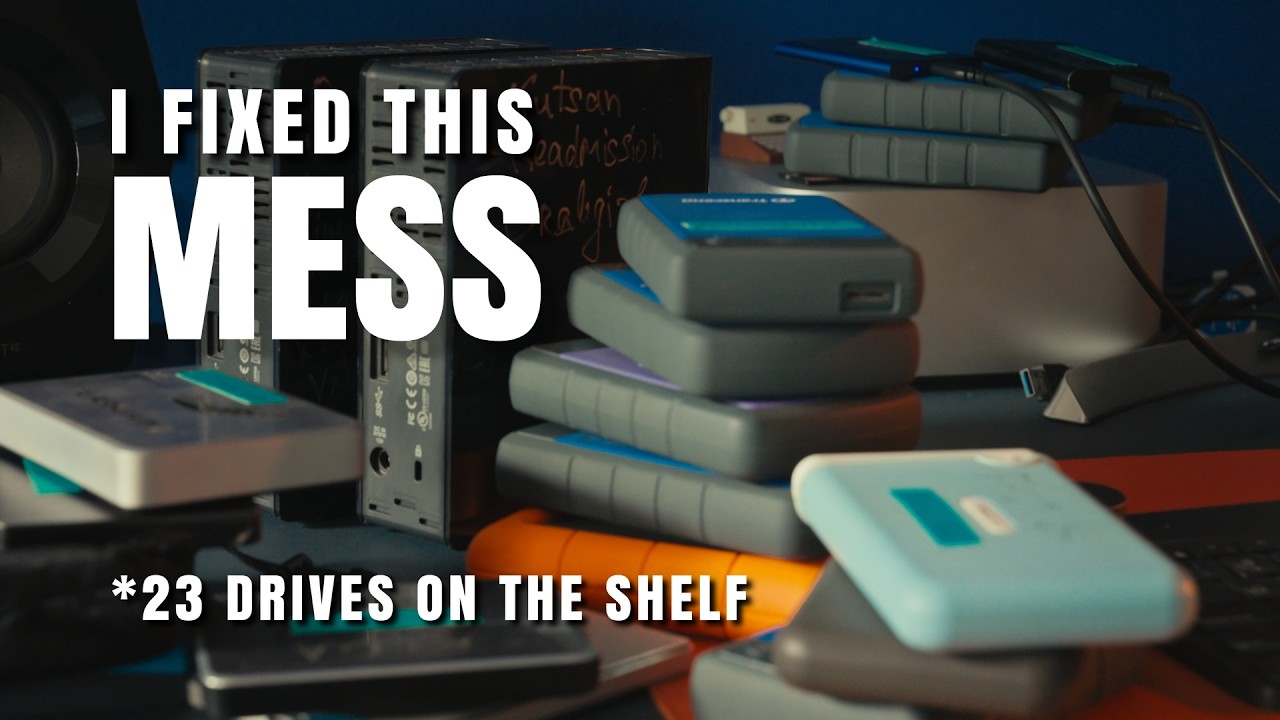
Ever pulled five drives off the shelf just to find one file?
How it works
Every archived drive, searchable from any of your Macs — or your pocket
Your footage archive lives across a dozen drives on a shelf. Here's exactly how DriveShelf remembers what's on each one.
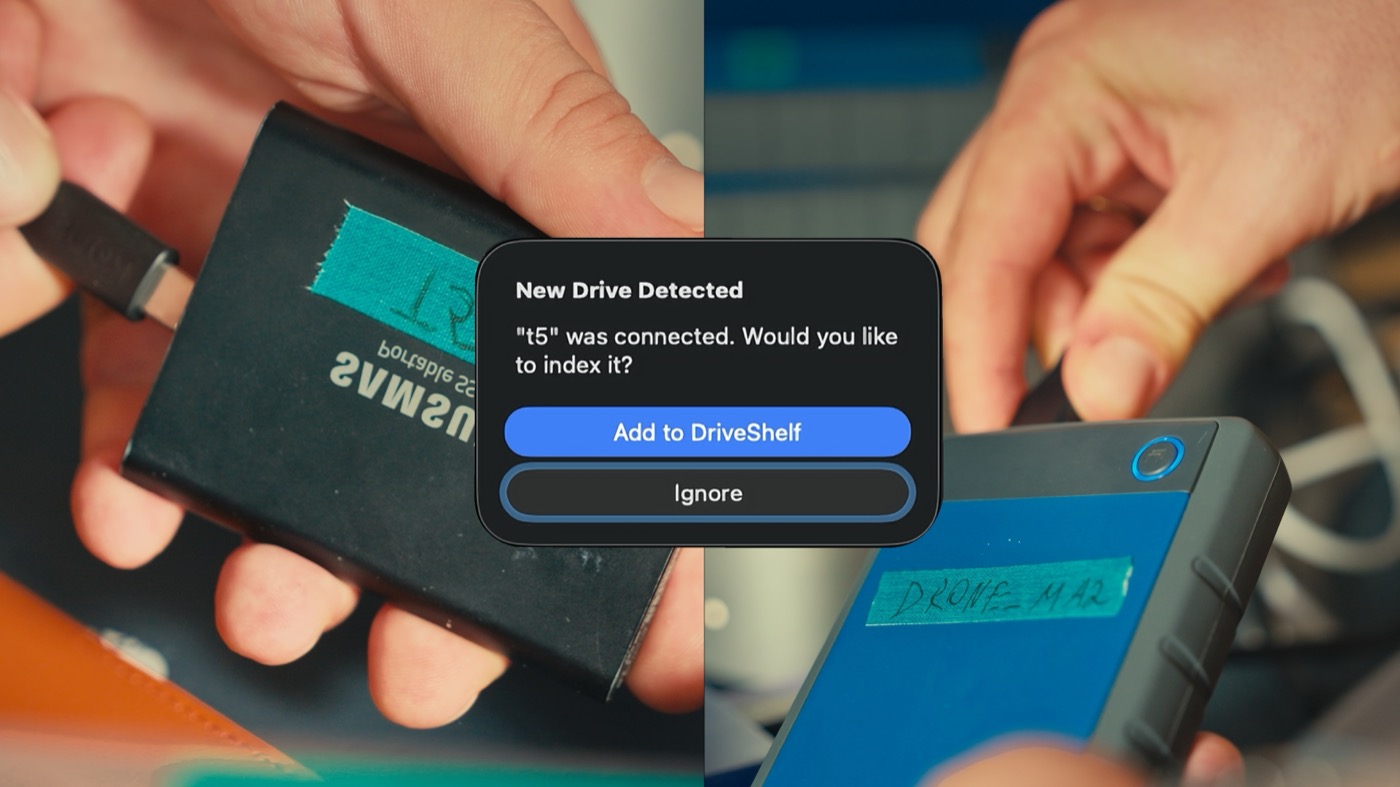
Plug in all your hard drives.
Plug your drives in one by one and DriveShelf indexes everything into a searchable record on your Mac. One quick scan, and the drive can go back on the shelf. Just remember to sticker the name on it first.
DriveShelf only builds its own private index — the drive isn't reformatted, tagged, or altered in any way. The catalog stays on your Mac, and none of it ever reaches me — if you switch on sync, it travels through your own iCloud account to your other Macs and your iPhone, and nowhere else.
Search files across all hard drives.
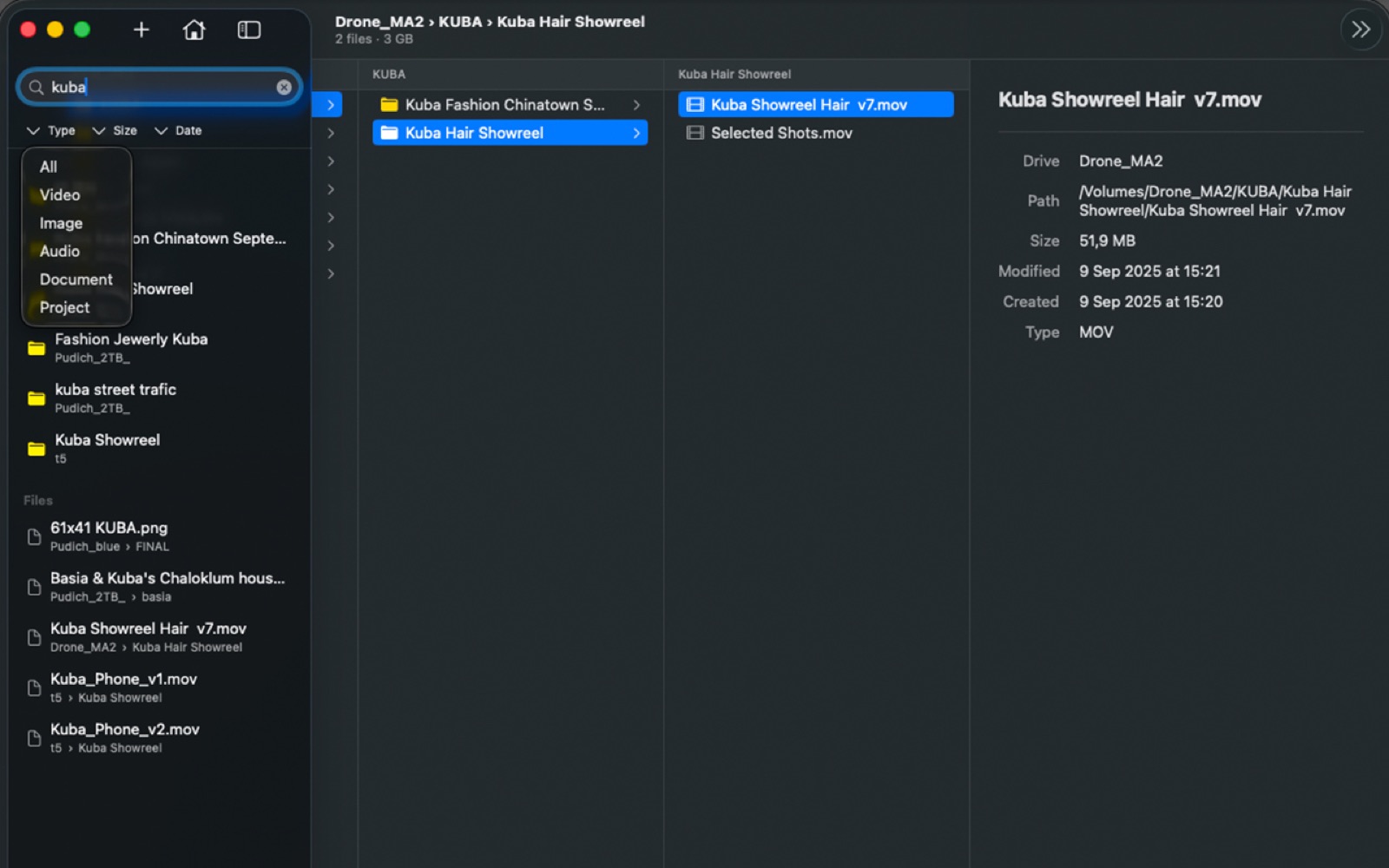
Search runs against your whole library of cataloged drives at once — not just whatever happens to be connected right now. Type a filename or part of a path and DriveShelf tells you exactly which physical drive has it.
Finder's search only knows about what's plugged in. DriveShelf remembers every drive you've ever cataloged, down to the Finder tags on each file and folder. Type a tag name, or pick one in the Tag filter, to list everything with that tag.
Find duplicates between all hard drives.
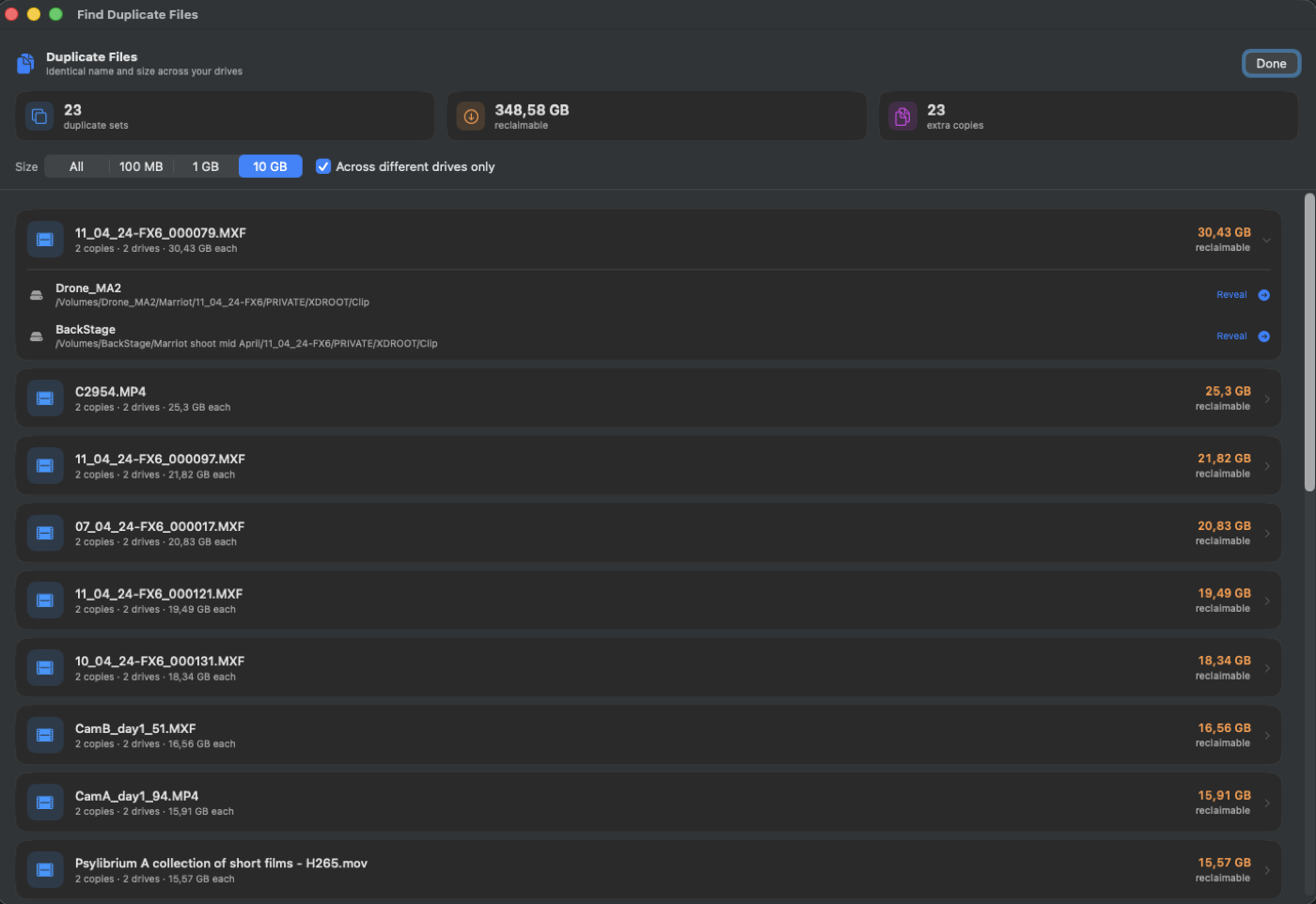
DriveShelf compares files across your entire catalog — not just within one drive — and flags the ones that exist in more than one place. The Folders view does the same for whole folders copied to two drives, matched file by file on name and size.
You decide what's safe to consolidate or delete. DriveShelf doesn't touch anything — it just points out where the duplicates are so you can save the space. The duplicates and the full file list export as CSV for a spreadsheet.
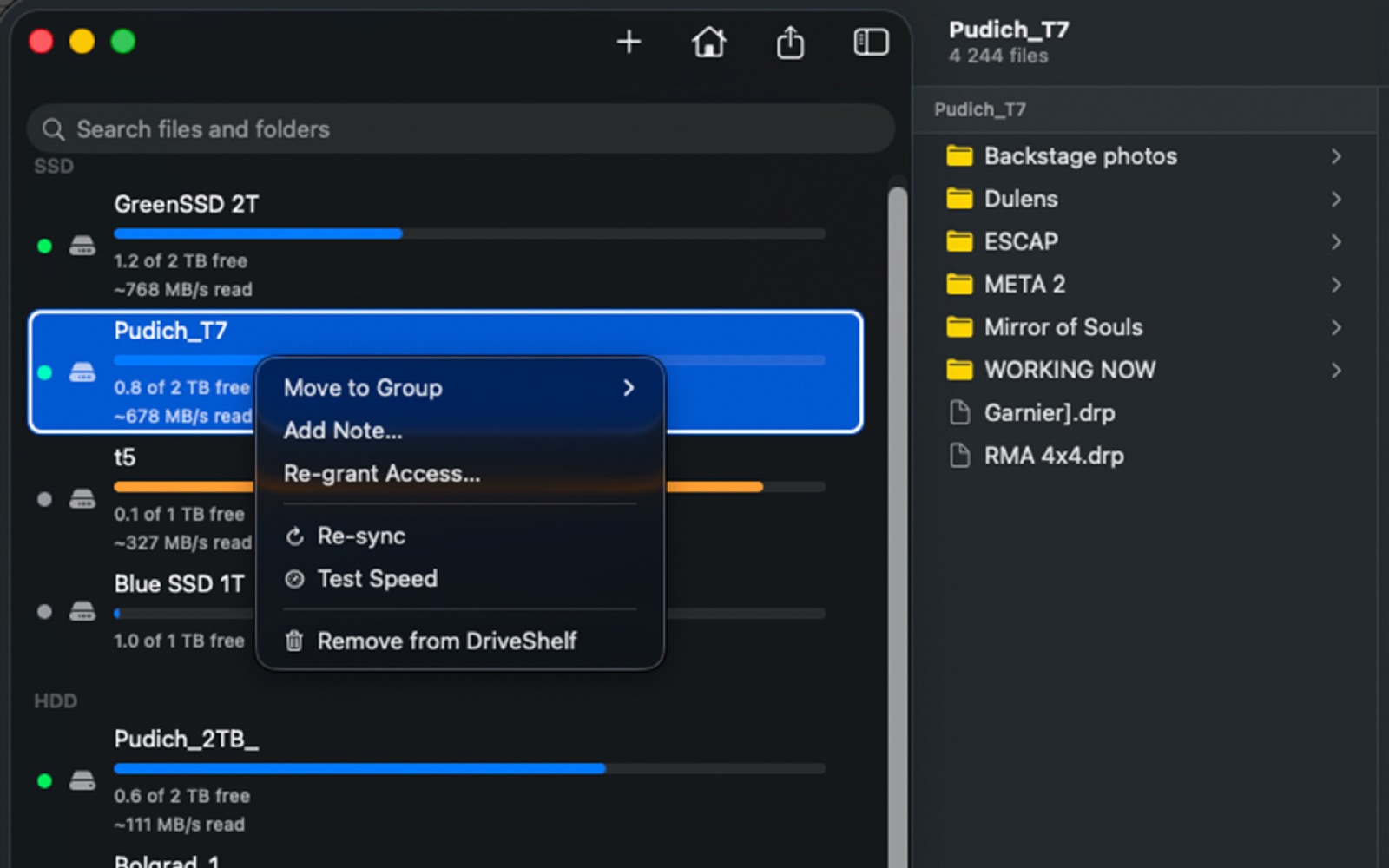
Organize the shelf as you want.
Group drives by client, by project, or by year — whatever works best for you. Each drive also shows how much free space is left and how fast it reads, right in the sidebar.
Every folder shows its total size, so you see where the space went. Final Cut Pro, iMovie, Photos and Logic libraries count as one item at the size Finder shows, not thousands of render files. And a PDF drive report lists each drive's biggest folders.
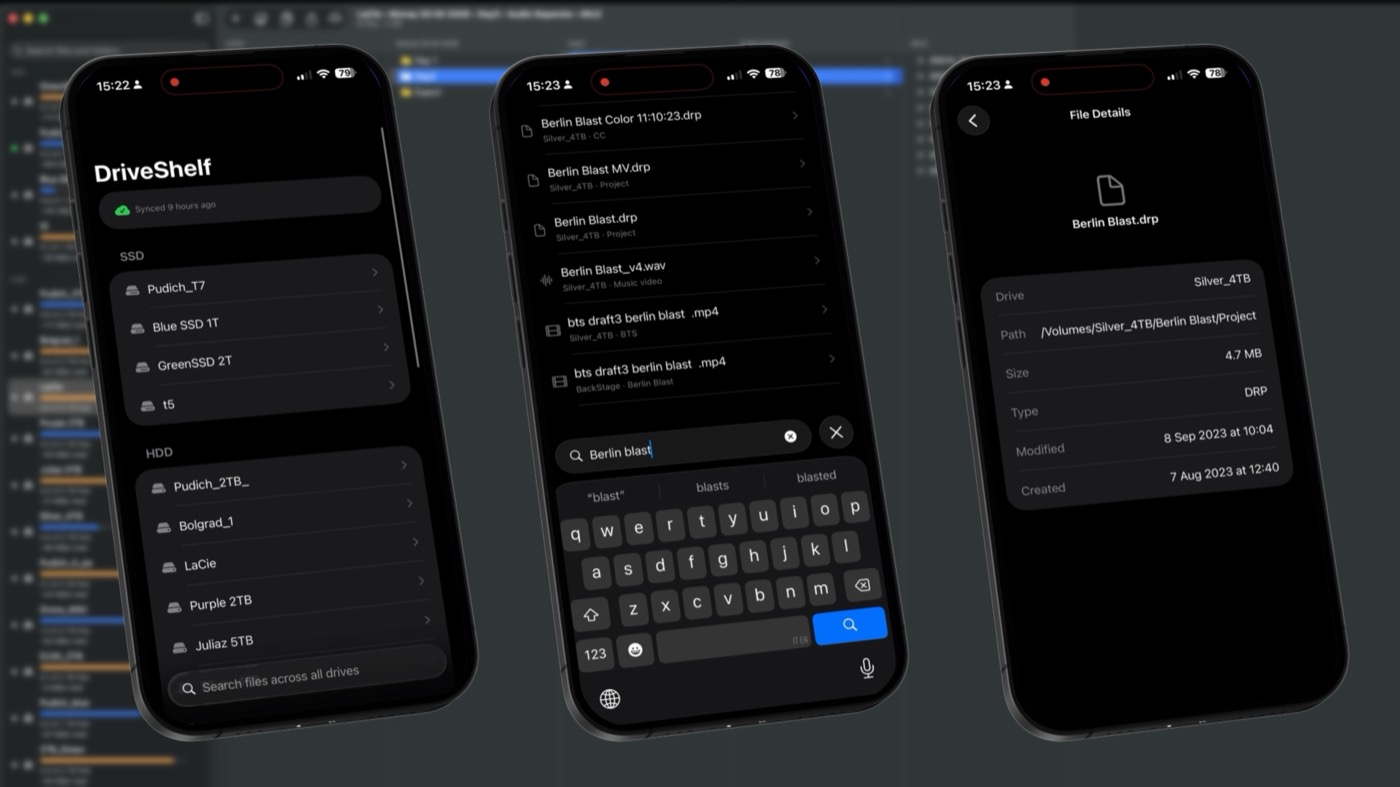
Check your shelf from any Mac, or your phone.
Cataloged a drive at the studio and now you're on the laptop? Click Sync Now on each Mac's home screen, or turn on Sync automatically, and every one of your Macs shows the drives of all of them. DriveShelf on iPhone shows them all too — through your own iCloud, on the same Apple ID, not through me.
Each Mac keeps its own catalog of the drives it scans, and drives from your other Macs are read-only there. The iPhone app is part of the same $14.99 purchase: open the App Store on your iPhone with the same Apple ID and download it. It reads what your Macs cataloged; it doesn't scan drives on its own.
What people are saying
5.0 out of 5, from real Mac App Store reviews.
Essential for anyone with multiple drives
DriveShelf is exactly the kind of app I've always needed. If you have several external hard drives, it makes it incredibly easy to see what's stored where without having to connect and search through every drive. It's simple, convenient, and genuinely useful.
The app you didn't know you needed
As a professional filmmaker, I've accumulated dozens and dozens of hard drives over the years, and keeping track of where specific files are stored can be a real challenge. DriveShelf makes this incredibly easy, giving me a clear overview of my entire archive.
Finally catalog all my external drives
Easy to use, very fast and accurate. Now I can always find the files or folders I'm looking for without going in all my external drives. And with finding duplicates, I freed up one hard drive — that's 50x more than the app price. Worth it!
Finally the app I was looking for
Saved me a bunch of time looking for old files that I needed to recover for clients or current projects. Easy to use and effective. A life saver!
Perfect for video editors
Highly recommended time saver looking for assets that are on multiple HDDs / SSDs.
Must have for all creatives
Finally an app that lets me access and keep everything organized without having to go crazy trying to remember where I stored what. A must have for creatives or really anyone working off a large archive of files. Bravo!
Impressive
Really just taking the time to try out the software now, and I'm impressed. At first, I had mixed feelings about having to add my drive to the app. But then I realized that even when the drive isn't connected, I can still search for files and see results from it. That's what made me love the app even more. It's genuinely a great tool, especially for creatives, it makes bulk searching so much easier. Highly recommend.
Great app for filmmakers
I am a filmmaker and editor with many hard drives from different projects and I often forget which file is stored on which drive. DriveShelf makes it much easier to organize and find my footage without connecting every drive. A real time saver for film editors like me!
Huge help
I've needed this my whole life. Been slogging through with endless spreadsheets and logs. Now it's all organized and easy to access.
Fantastic and simple
The app does exactly what I wanted long time ago, I had 10+ hard drives and it gets search between them so easy! Saves me lot of time.
Fast and perfect for archived drives
I'm really impressed with DriveShelf! It scanned my 2 TB drive in literally a few seconds. It made organizing and cataloging all my external archive drives — where I store client project files and materials — so effortless and quick. Everything runs super fast and smooth. Highly recommended!
Saved me hours, days
I was just about to do an Excel sheet like a good old grandma when I saw this. This is soooo useful!!!
Questions about DriveShelf
Does DriveShelf copy or move my files?
No. DriveShelf only reads file names, paths, sizes, dates and Finder tags to build its catalog — it never copies, moves, or modifies anything on the drive itself, and it never changes your tags. The drive isn't touched beyond being read.
How many drives can I catalog?
No limit. Whether you have three drives or thirty, DriveShelf catalogs and searches all of them the same way.
Does DriveShelf need full-disk access?
No. It only asks permission for the drives you choose to add, and for your home folder if you choose File → Add This Mac. That access is read-only.
Is my catalog stored anywhere online?
Only in your own iCloud, and only if you turn sync on. The catalog is a local database on your Mac. If you click Sync Now on the home screen or turn on Sync automatically, it syncs through your own iCloud account to your other Macs and the iPhone app — handled by Apple, not by me. Full details in the privacy policy.
Can I use DriveShelf on more than one Mac?
Yes. Sign in with the same Apple ID and turn on sync on each Mac, and every one of them shows the drives of all your Macs. Each Mac keeps its own catalog of the drives it scans, and drives from your other Macs are read-only there — connect one and choose Keep Up to Date to catalog it on that Mac too. A shared library for a team on different Apple IDs isn't supported.
What happens when I unplug a drive?
Nothing — that's the point. The catalog stays exactly as it was, fully searchable, whether the drive is connected or sitting on a shelf across the room.
Is DriveShelf a backup tool?
No — and it's worth being clear about that. DriveShelf catalogs and searches your drives; it doesn't verify, copy, or manage backups. If a drive fails, DriveShelf can't recover what was on it. Think of it as a card catalog for a library, not the library's insurance policy.
Does DriveShelf work with network drives (NAS)?
Not yet. DriveShelf is built for physical drives — external SSDs, HDDs and camera cards, the kind of media that actually lives on a shelf — plus your Mac's home folder through File → Add This Mac. Network drives aren't supported yet. Extra internal drives aren't supported either.
What happens if I rename or reformat a drive?
DriveShelf recognizes each drive individually, so renaming it in Finder won't break its link to your catalog — everything stays exactly where you left it. Reformatting a drive gives it a fresh identity, though, so DriveShelf treats it as a brand-new drive the next time you connect it.
Does DriveShelf handle Final Cut Pro libraries?
Yes. Final Cut Pro, iMovie, Photos and Logic libraries show as one item each, at the size Finder shows, instead of thousands of render files. DriveShelf doesn't list the files inside them. Drives cataloged before 2.0 show their libraries, and their Finder tags, after their next scan. Connecting the drive starts one.
Can I back up my catalog?
Yes. Use File → Export Catalog anytime to save a complete copy, and File → Import Catalog to restore it later. Sync shows the same library on your other Macs and your iPhone, but that's for searching, not a backup — keep using the export.
Does the iPhone app cost extra?
No. It's one purchase — $14.99 covers the Mac app and the iPhone companion. Already bought it on the Mac? Open the App Store on your iPhone, sign in with the same Apple ID, and download the companion; there's nothing more to pay. It shows the catalog your Macs built, so it needs the Mac app to be any use.
Can I get a refund?
Purchases go through Apple's App Store, so refunds are handled by Apple, not by us directly — request one at reportaproblem.apple.com.
Want the manual way too?

After my drive count passed 10 units, I started cataloging files in an Excel file... and it was a disaster: I'd forget the manual updates, lose time just finding the Excel file, and the sheet only tracked folder routes — not the actual files inside them. It just wasn't effective, and became useless within two years.
That's why I decided the time had come — DriveShelf fixes my decades-long struggle with indexing drives, updating info, and searching for files. And I'm happy to share it with fellow colleagues, so no one needs to use Excel or stickers anymore. Enjoy.
— Sergiy