 EasyFilm
EasyShrink
Drag in a file, get everything your website needs — sized, compressed, ready to paste.
Requires macOS · Universal, Apple silicon and Intel
Ever hand-exported the same clip three times just to get one page web-ready?

How it works
Everything your page needs, out of one drop
Drop in a video, images, or a GIF and EasyShrink builds the web-ready set — sized, compressed, and paired with the HTML to paste it in.
One drop, and it knows what to do.
Drop a video, a set of images, or a GIF — EasyShrink reads what it is and offers what makes sense: a smaller MP4, a poster frame, JPEG, PNG or AVIF photos, or a looping clip.
No format decisions up front. Choose the size and the options once you see what you're working with.
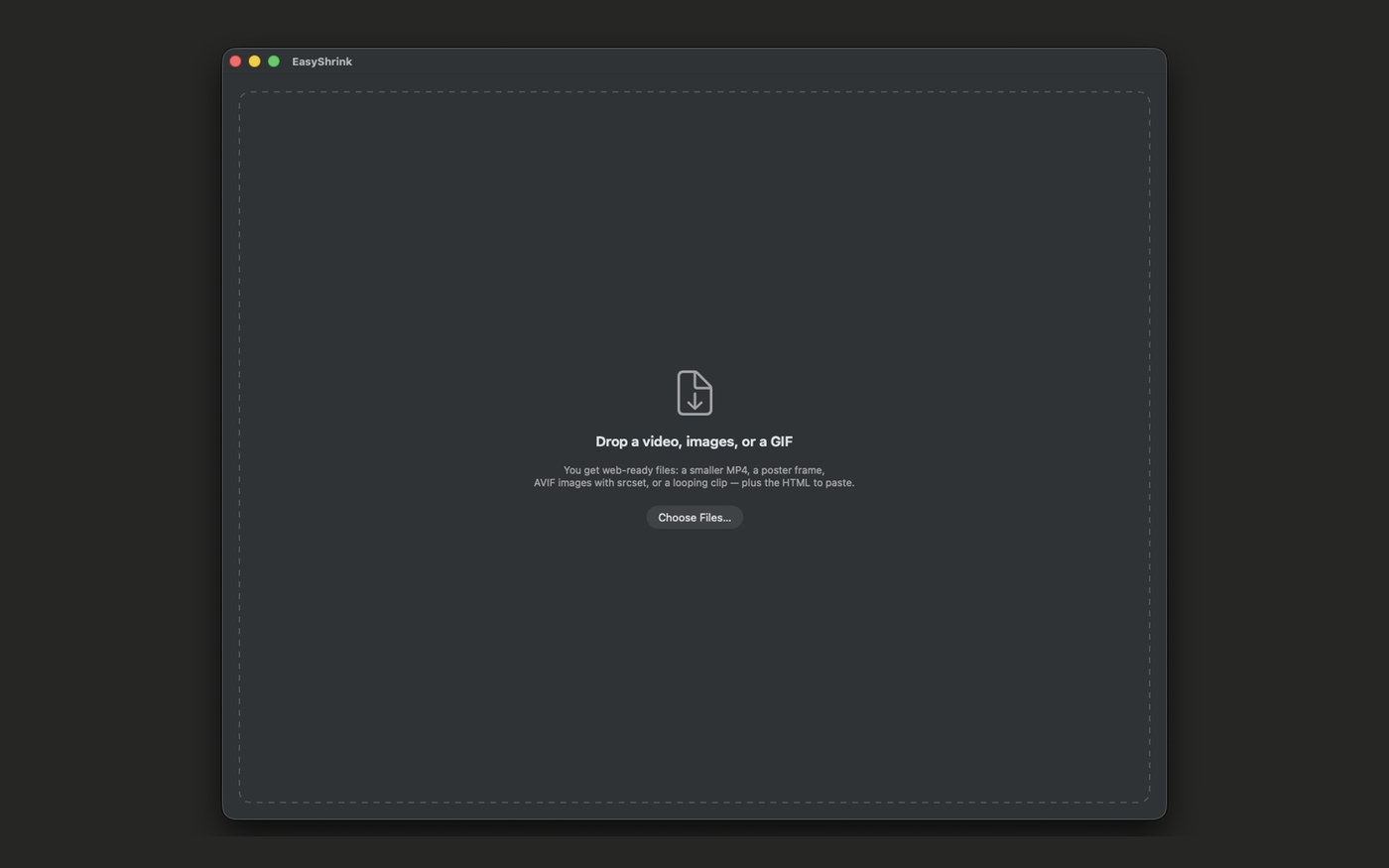
Every size your page actually needs.
Hero exports up to 1920px wide, for a full-screen background or showcase video. Content and Thumbnail size down from there — pick the slot on the page, not a pixel number.
Turn on "Keep audio" if the clip needs it. It's off by default, since most web video plays muted anyway.
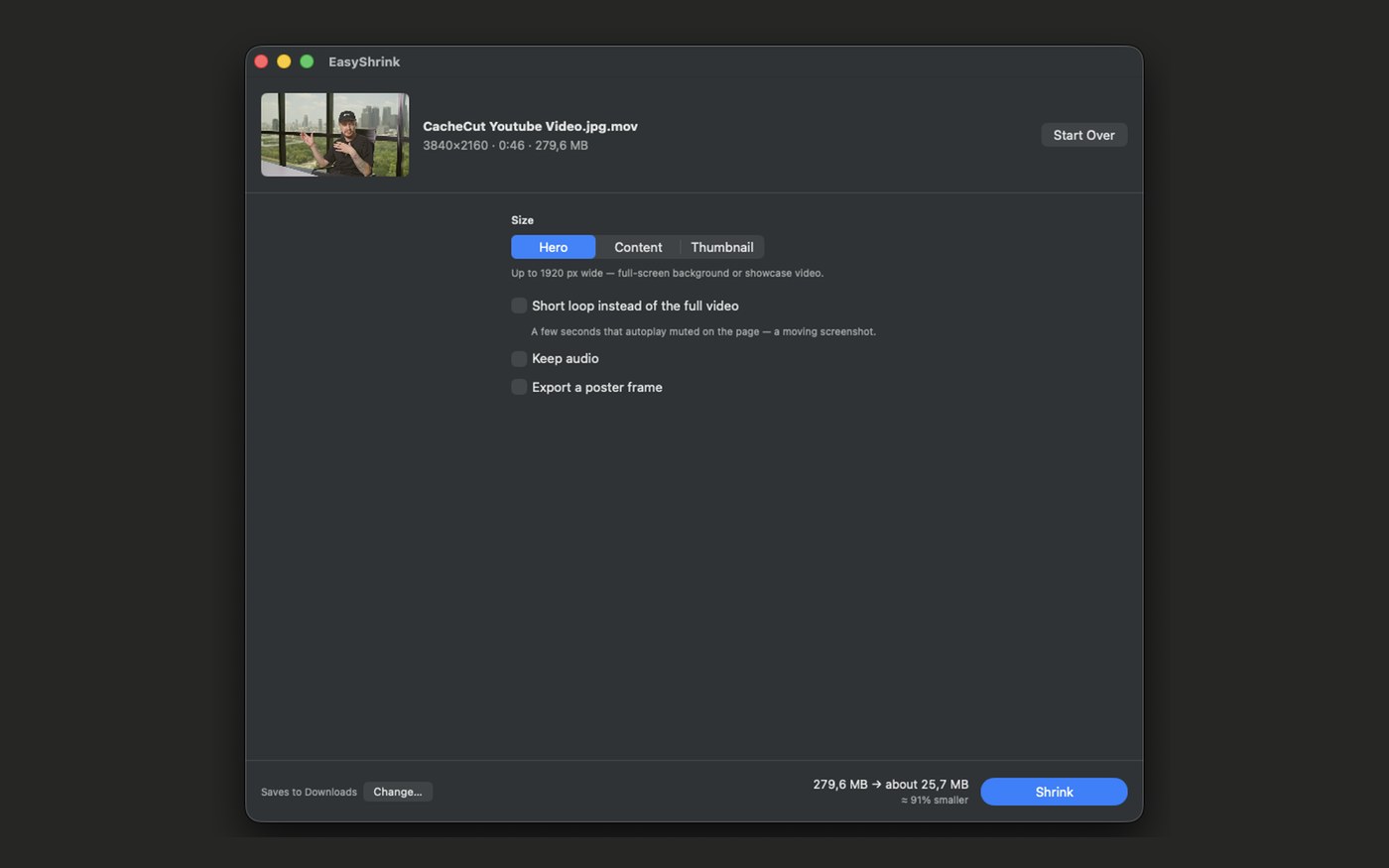
Turn any clip into a moving screenshot.
Pull the in and out points on a real filmstrip, then turn on "Short loop instead of the full video" — a few seconds that autoplay muted on the page, the way a moving screenshot should.
A 279.6 MB source clip trimmed to 18 seconds came out at about 10.1 MB — a 96% drop, still full quality at web size.
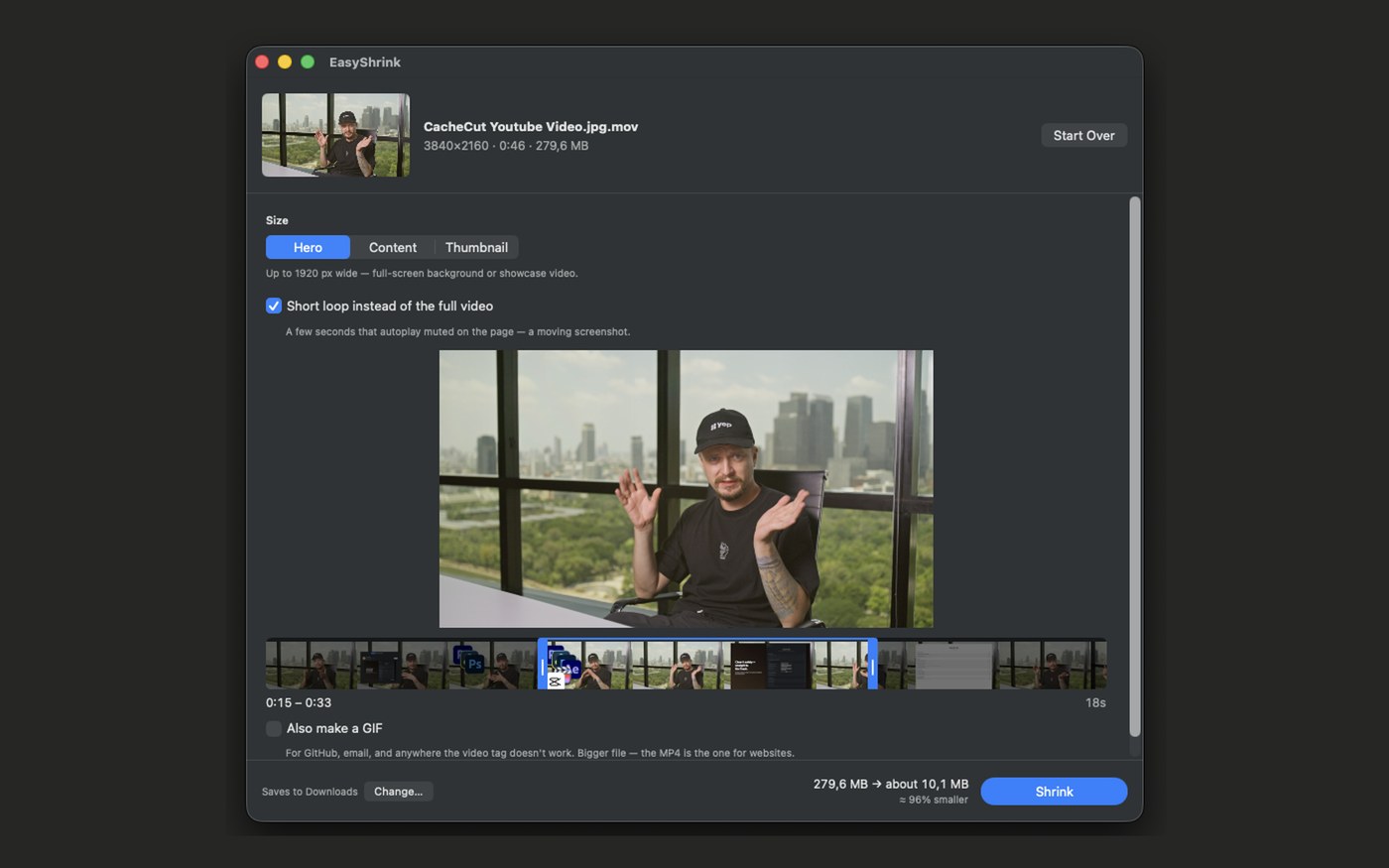
The right poster frame, every time.
Every video needs a still to show before it plays. EasyShrink picks one automatically, or turn on "Pick the frame myself" and scrub to the exact moment you want.
Export it alongside the video, sized to match.
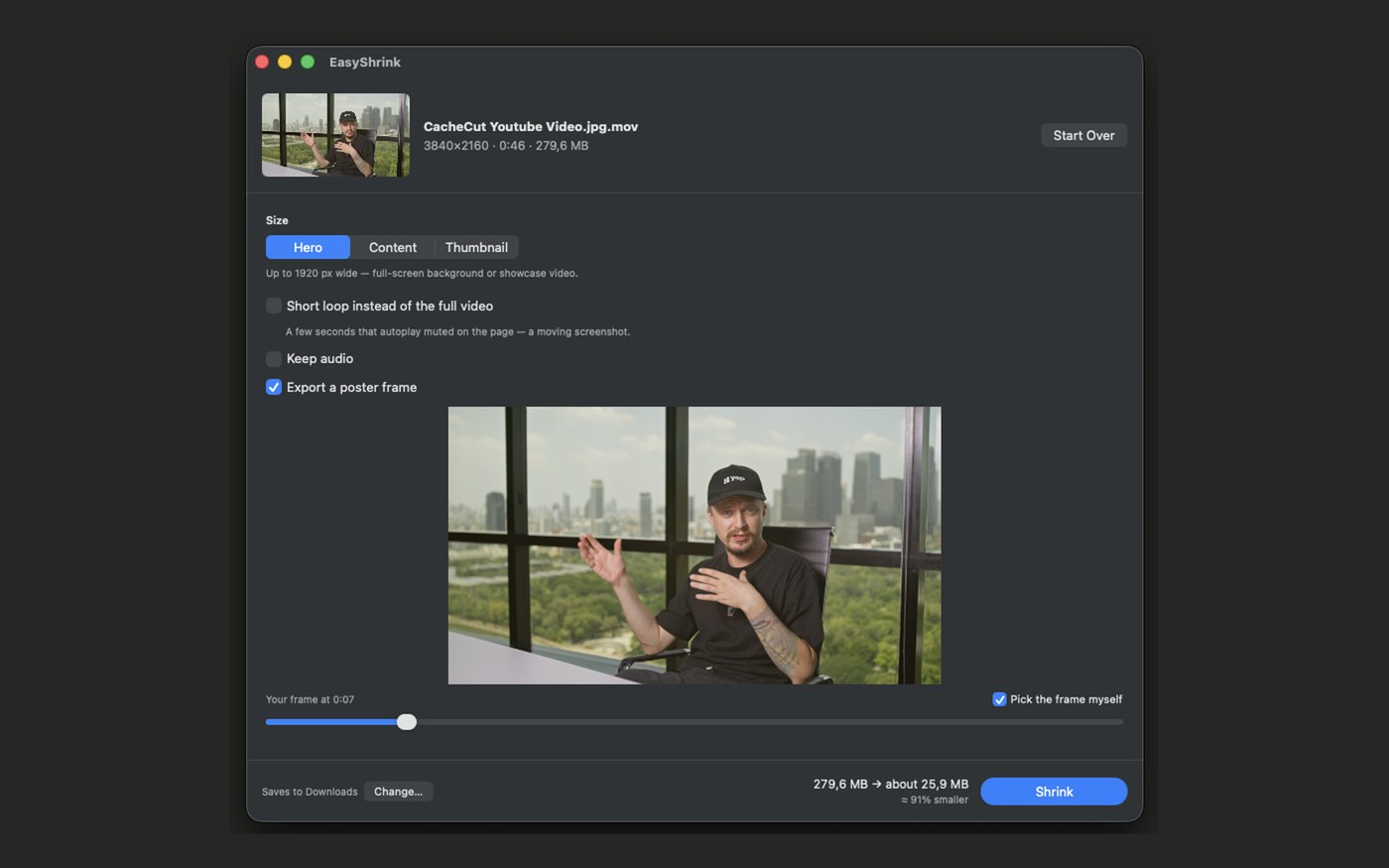
Big numbers, and the HTML ready to paste.
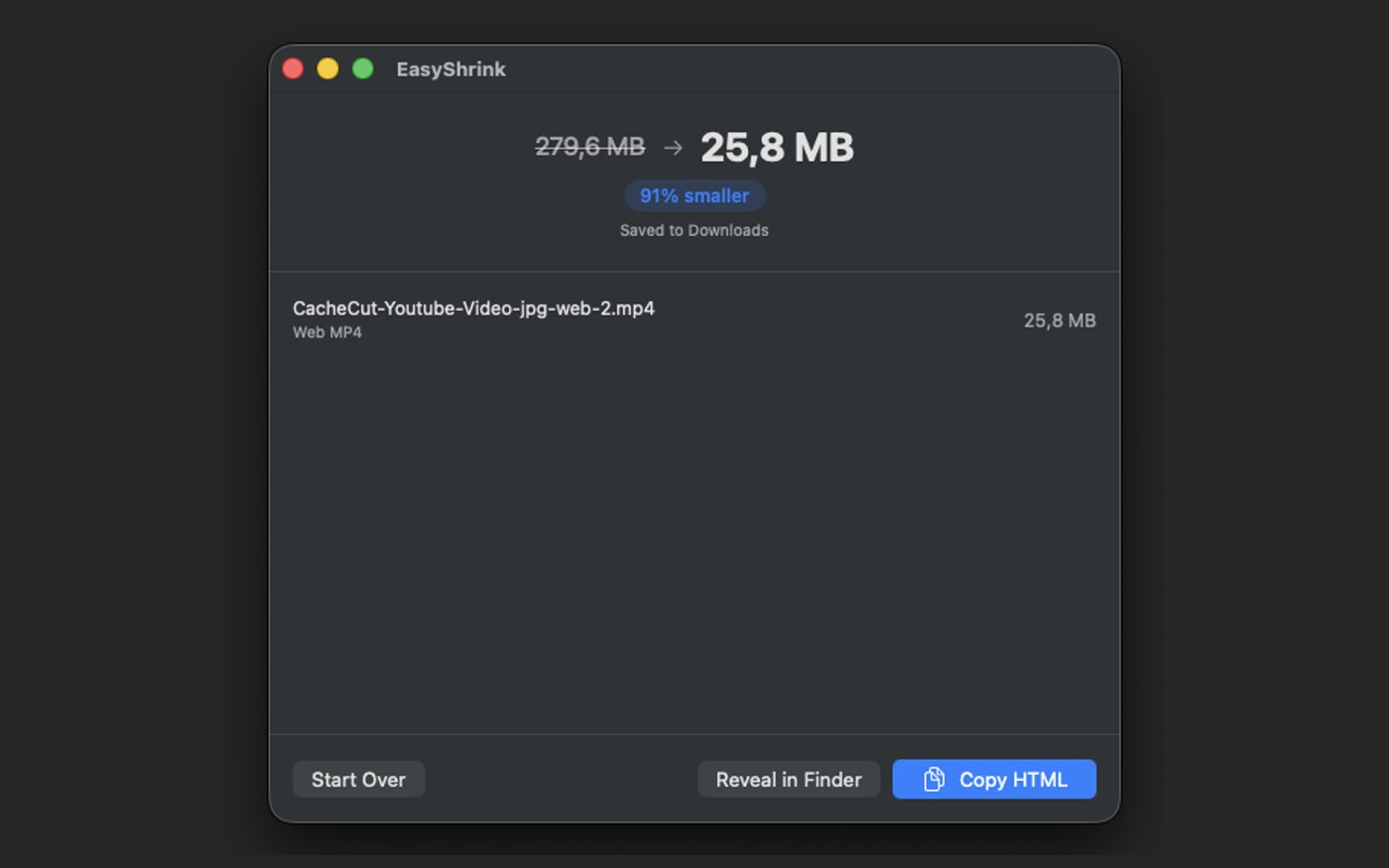
Every export shows the before and after, in plain megabytes and a percentage — 279.6 MB down to 25.8 MB, a 91% drop, right there on the results screen.
Reveal it in Finder, or skip that and hit Copy HTML for a snippet that's ready to paste straight into the page.
Questions about EasyShrink
Does EasyShrink upload my files anywhere?
No. EasyShrink collects nothing and has no networking code — everything it does happens entirely on your Mac.
What can I drop in?
A video, a set of images, or a GIF. Camera RAW formats like BRAW or R3D aren't supported.
What sizes does it export?
Hero (up to 1920px wide, for a full-screen background or showcase video), Content, or Thumbnail — sized for exactly where the file is going on the page. Photos come out at one width per size — 2400, 1600 or 640px — in the format you tick: JPEG, PNG or AVIF.
Can I turn a video into a moving screenshot?
Yes — trim the clip on the filmstrip, turn on the loop option, and it exports as a short autoplay-muted clip instead of the full video.
Does it keep the audio?
Only if you turn "Keep audio" on. Looping clips are silent by design, since that's how they're meant to autoplay on a page.
Can I make a GIF too?
Yes — "Also make a GIF" exports one alongside the MP4, for the places a video tag doesn't work, like GitHub or email.
Where do my exports go?
Wherever you choose — Downloads by default, or pick another folder with Change. Reveal in Finder gets you there in one click.
Want the manual way too?

I'm not so good at Photoshop, so I make my YouTube thumbnails in DaVinci — and they're always bigger than 2 MB after export. Then I have to open them in Photoshop to shrink them down for YouTube.
That made me think: can't this be a quick drag-and-drop solution? The same goes for shrinking videos for website headers and blog posts. And now you can do it in a click.
— Sergiy