 EasyFilm

EasyGrab
Your screen, your voice and your webcam in one take — double-tap Shift to zoom in.
Requires macOS 15 or later · Universal, Apple silicon and Intel
Ever recorded a tutorial where nobody could read the menu you clicked?
How it works
A finished tutorial, recorded in one take
EasyGrab records your screen, your Mac's sound and your microphone together, puts your webcam in a corner, and zooms in on the pointer when the detail gets small. Nothing it records leaves your Mac.
Screen, sound, voice and face, in one take.
Record the whole display, one window, or an area you drag. Your Mac's sound and your microphone are captured together.
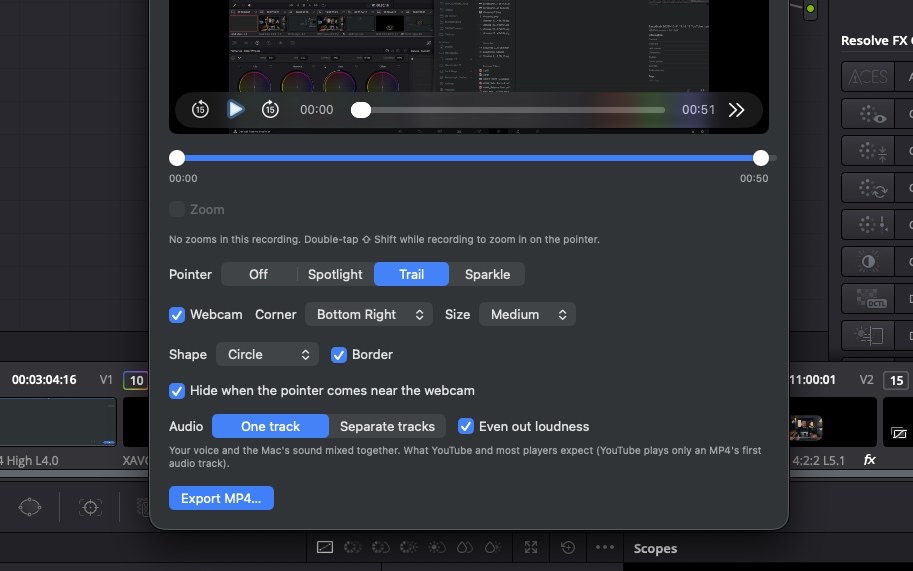
Switch on the webcam and it sits in a corner, as a circle, rounded or octagon. While you record, a live preview shows exactly where it'll be in the video.
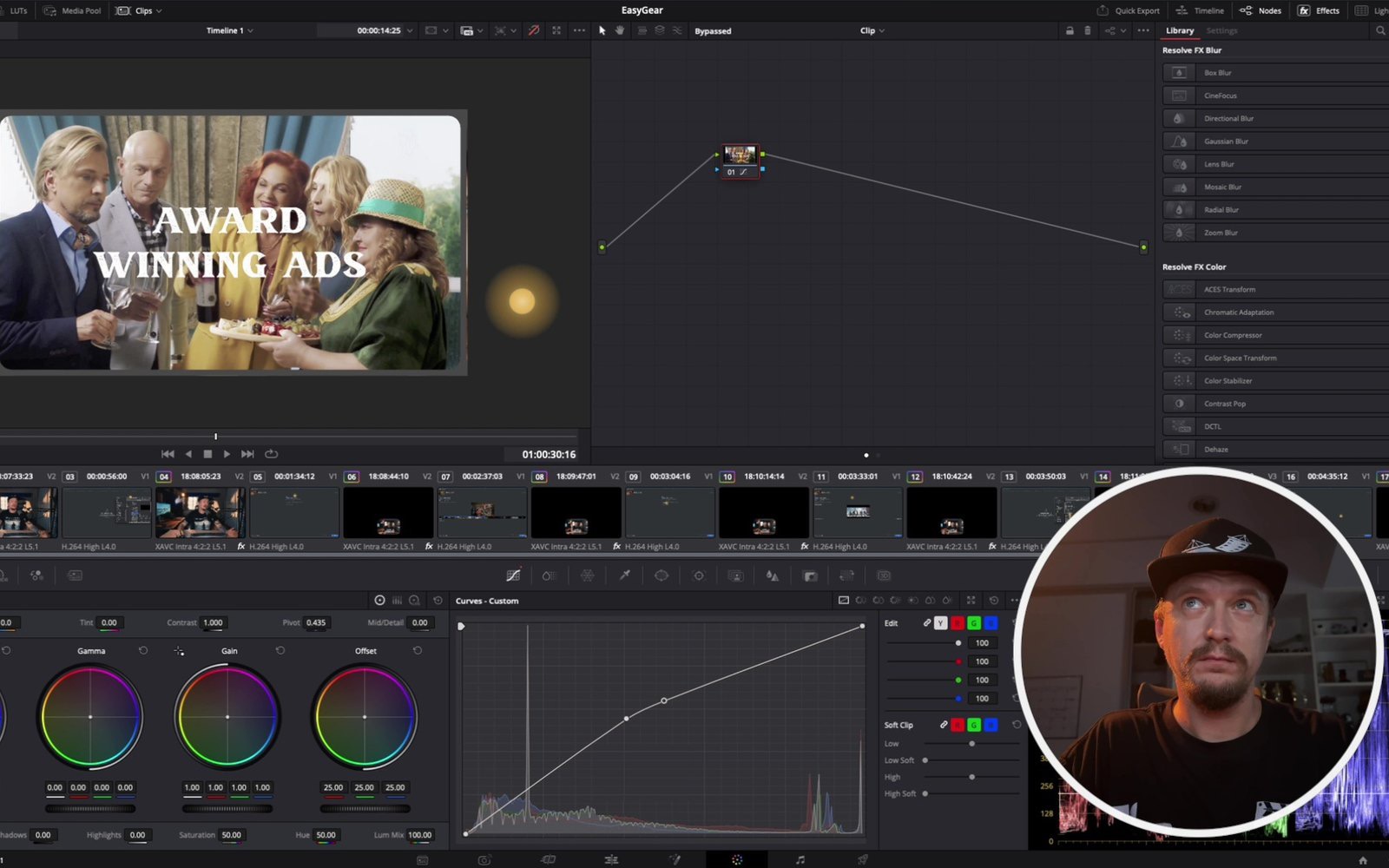
Double-tap Shift, and the picture zooms in.
Double-tap either Shift key while you talk and the picture zooms in 2× on your pointer. Move toward the edge and the view follows.
Double-tap again to zoom out. Shift pressed with another key, for a capital or a shortcut, doesn't count, so typing doesn't set it off.
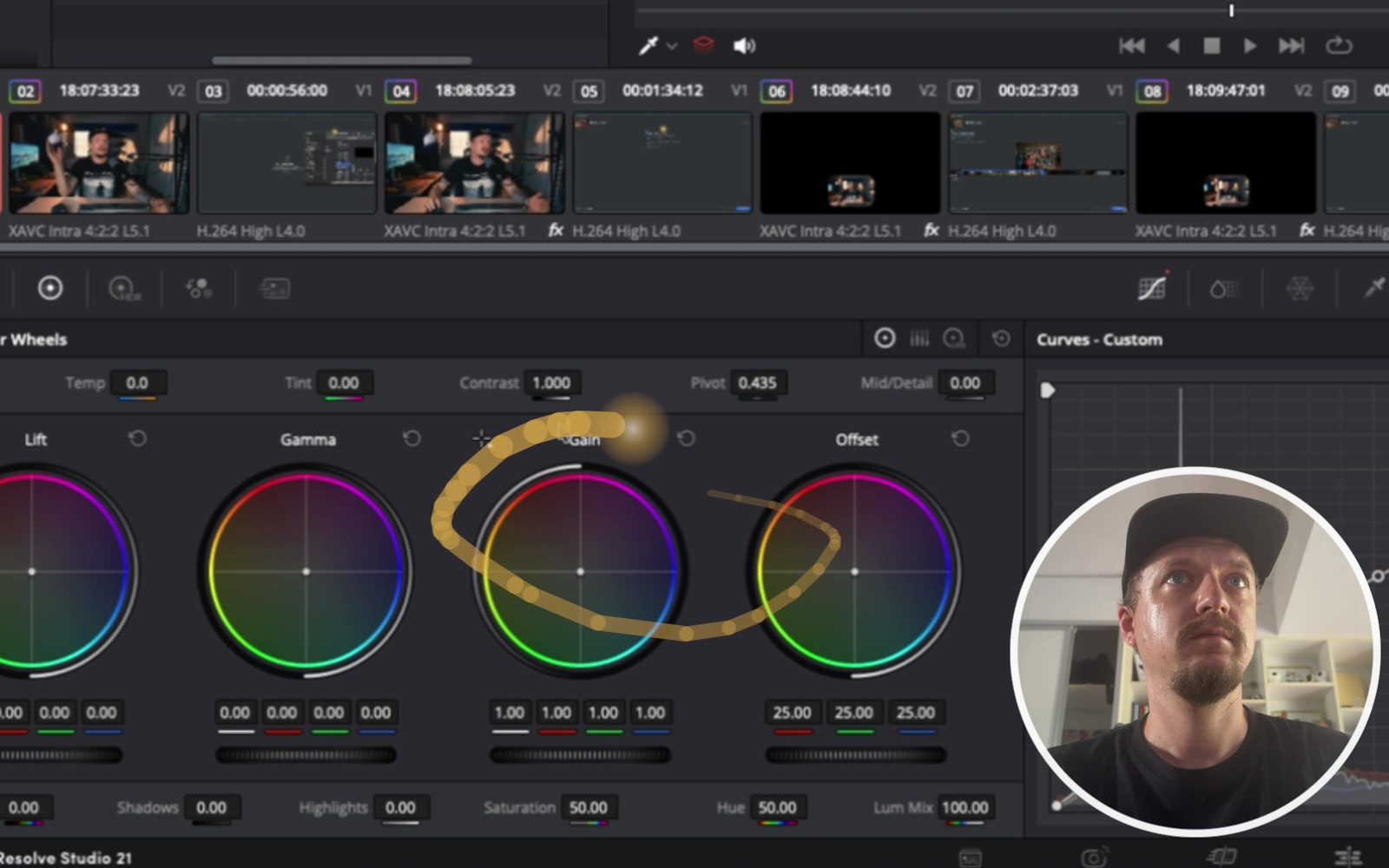
See exactly what's in the shot.
While you're zoomed in, a green frame on your screen outlines what the video shows and moves with the pointer. It's on your screen only, never in the recording. How cool is that?
The zoom is applied afterwards, in review, so nothing is baked into the take. One checkbox switches it off.
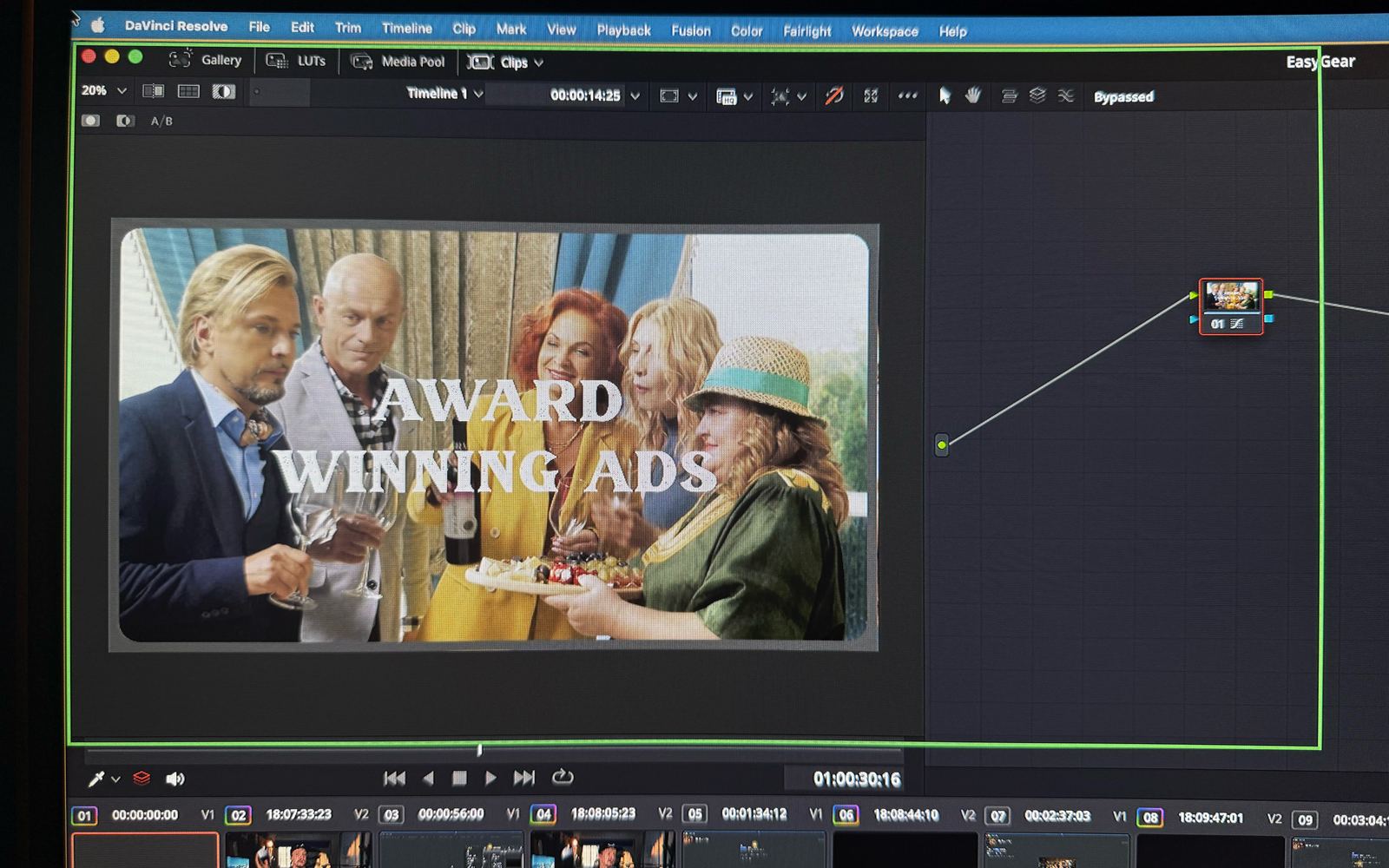
Make your pointer impossible to miss.
Spotlight, Trail, Sparkle or Rainbow on the pointer, each with a ring on every click. You pick it in review, after the take.
The webcam steps aside, too. Move the pointer toward it and it fades out, so nothing stays hidden under it.
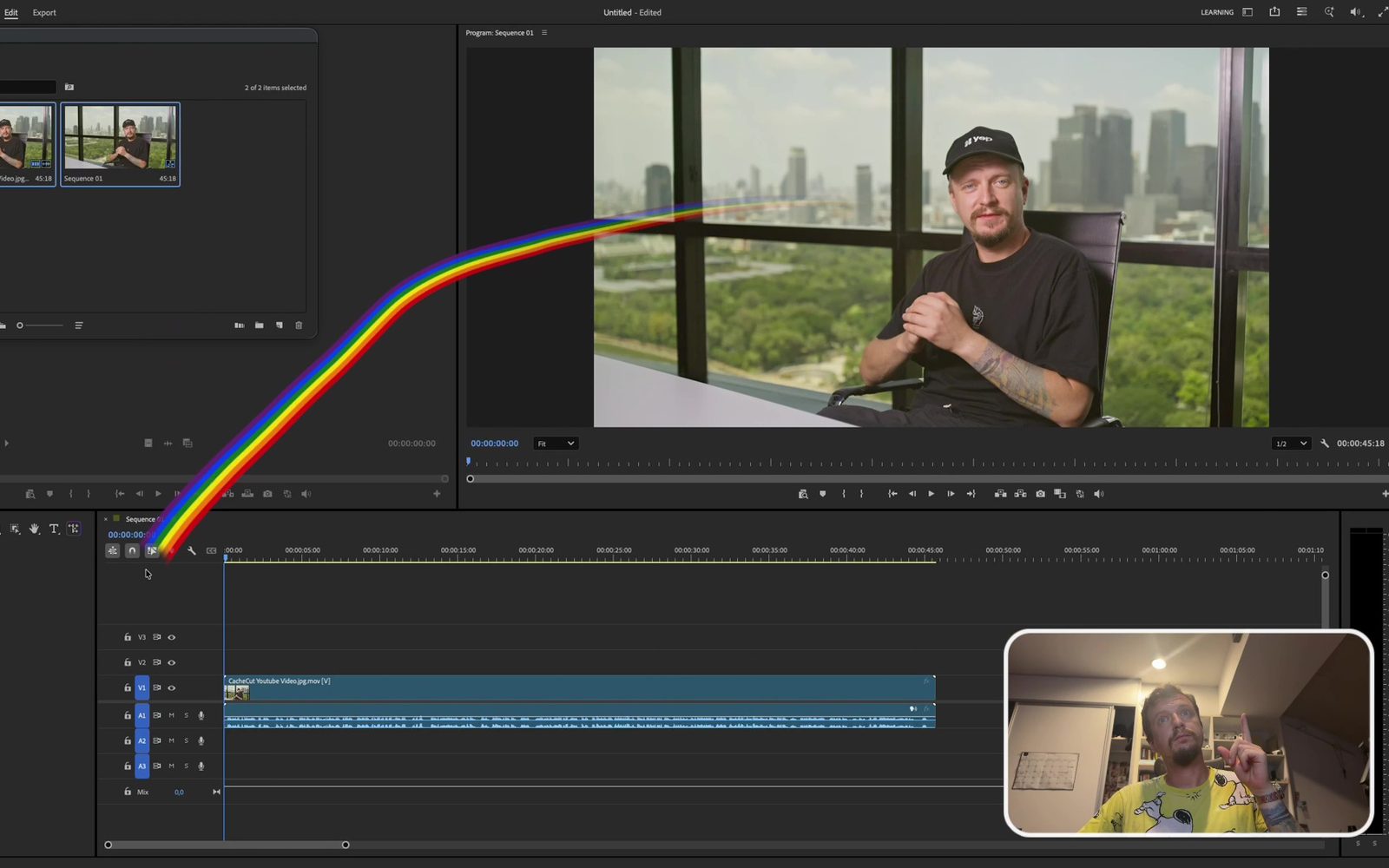
Stop, trim, and it's ready for YouTube.
When you stop, the review window opens. Trim the start and the end, change the webcam's corner, size and shape, and watch the result.
Export one MP4. One track mixes your voice and your Mac's sound for YouTube. Separate tracks keeps them apart for Resolve, Premiere or Final Cut.
Questions about EasyGrab
Does EasyGrab upload my recordings anywhere?
No. EasyGrab has no networking code at all, no account, no cloud and no analytics, so nothing it records can leave your Mac. Takes are saved in EasyGrab's own folder on your Mac, and the App Store privacy label says Data Not Collected. Full details in the privacy policy.
Is it a subscription?
No. EasyGrab is $9.99, paid once, on the Mac App Store.
What resolution and frame rate is the export?
An H.264 MP4 at a constant frame rate, the one you recorded at: 24, 25 or 30 fps, with 25 as the default. Exports top out at 1920×1080 for a 16:9 area. Takes keep up to 3840 pixels (2560 on Intel Macs), so zooms stay sharp.
Can I pause in the middle of a take?
Yes. Pause freezes the take and the timer, and Resume carries on in the same take.
Can I cut out the middle of a take?
Not in EasyGrab. It's a recorder with a trim, not an editor: trim the start and the end, then cut the middle in your editor. Separate tracks keeps your Mac's sound and your voice apart for that.
Which Macs does it run on?
Any Mac with macOS 15 or later, Apple silicon or Intel.
Can I get a refund?
Purchases go through the Mac App Store, so refunds are handled by Apple, not by me. Request one at reportaproblem.apple.com.

I make courses and an educational YouTube channel about editing in DaVinci Resolve, and I constantly need to record my screen with me "in the circle". There are many apps out there, but they all lack something I need for a screen-recording session: a trail for the cursor, different webcam shapes, zoom in with one button, easy export, enhanced audio…
So I collected everything I need in this app, and now I'm sharing it with you for a fraction of the market price — because I built it for myself first, and I'm happily using it now.
— Sergiy