 EasyFilm
EasyStills
Turn a finished video into ready-to-post stills or motion frames in a minute.
Requires macOS · Universal, Apple silicon and Intel · H.264, HEVC and ProRes
Ever scrubbed through an entire timeline just to grab one good frame?
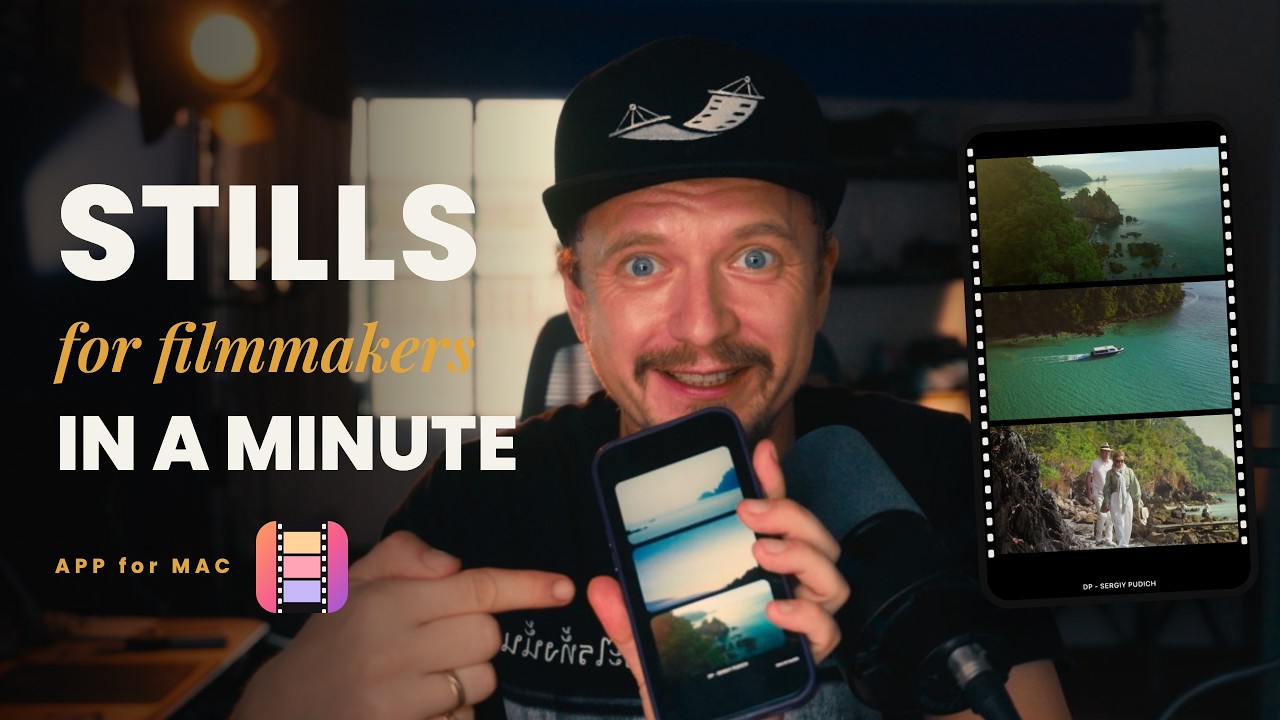
How it works
A portfolio video can be turned into social-ready stills in about a minute
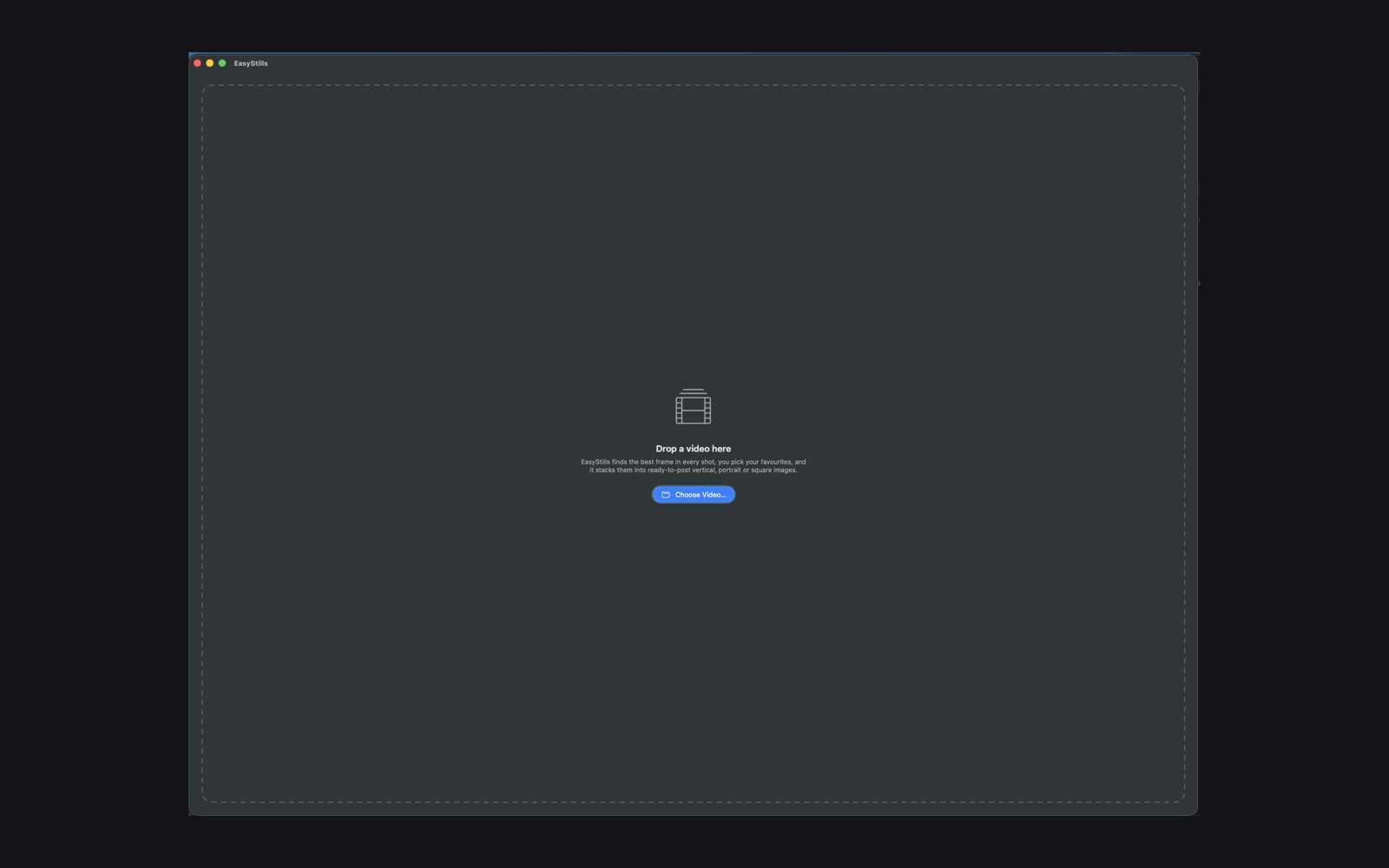
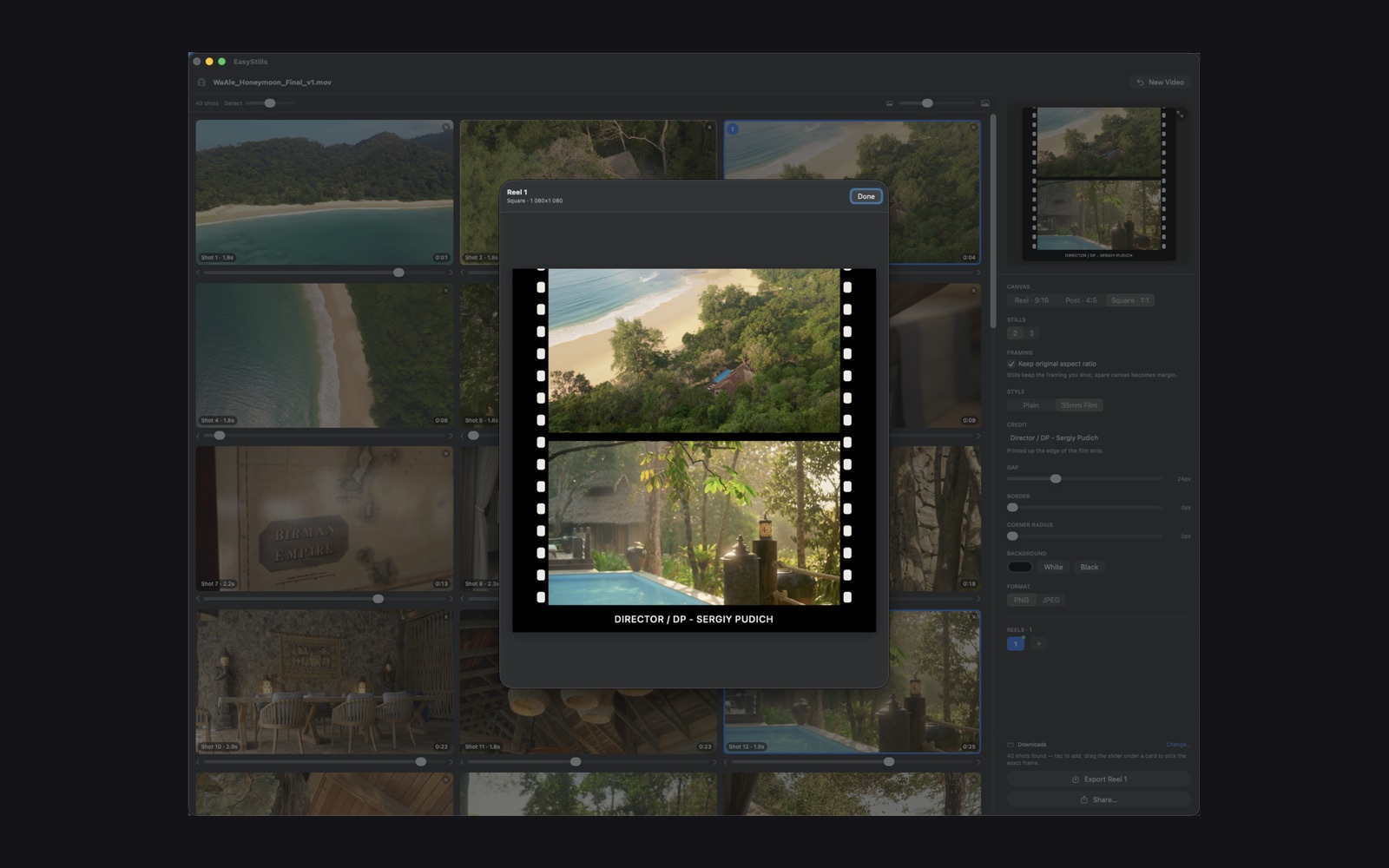
Drop a clip in and EasyStills watches every frame, finds where the cuts are, and gives you one card per shot — already showing the sharpest frame of that shot.
Drop in your video, and let it find every cut.
Shot detection runs over every single frame, so even half-second cuts are found — not skipped, the way a blind time-based sample would miss them.
No scrubbing a timeline hunting for a good moment, and no wall of near-identical thumbnails to sort through by hand.
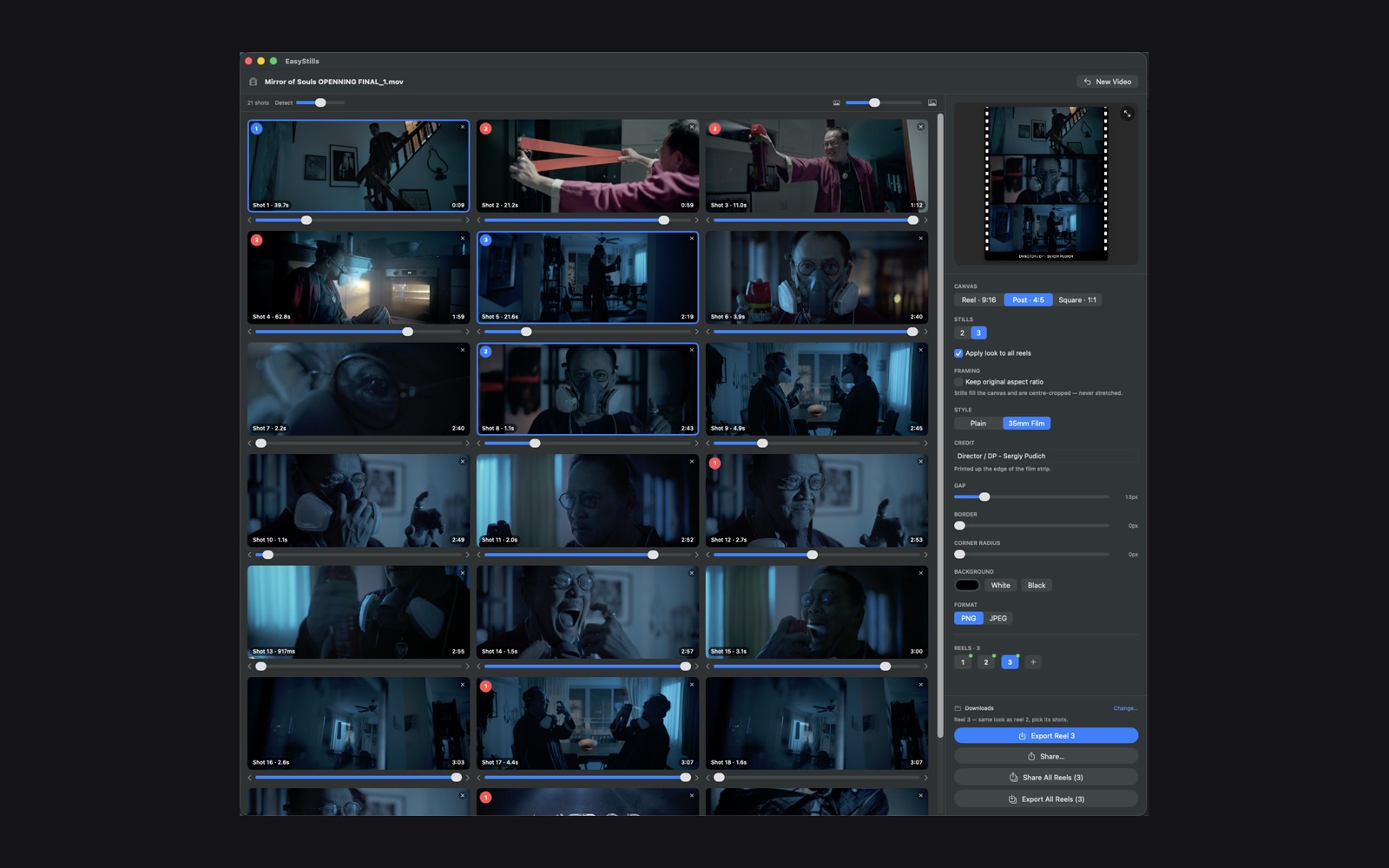
One card per shot, already at its best frame.
Every shot gets its own card, already showing its sharpest frame. Each one has its own scrubber and single-frame arrows, so you can nudge to the precise moment inside that shot if the auto-pick isn't quite it.
Cull the shots you don't want and restore them later — nothing is thrown away.
Reel in Motion.
Boomerang the whole scene to create a ready-to-post reel with motion frames.
The same stack becomes a short looping video instead of a still — each shot plays forward, then back — and exports as a silent MP4, ready to post.
Full resolution, in your own style.
Stack your picks into a finished image at exact pixel sizes — 1080×1920 vertical, 1080×1350 portrait, or 1080×1080 square — with your framing kept, never stretched.
One switch turns the stack into a strip of 35mm film, with your credit line printed along the edge.
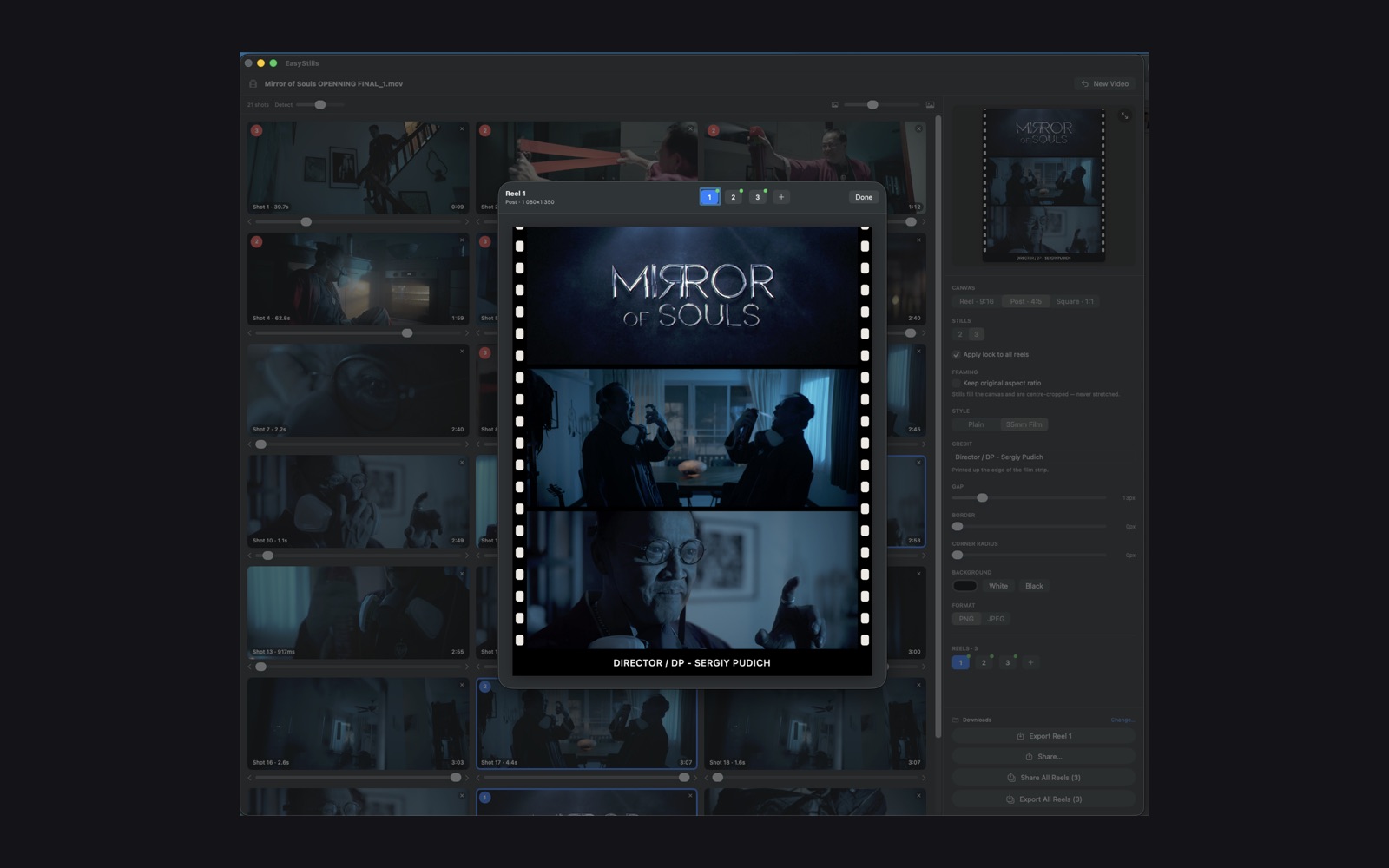
Build a set, not just one post.
Make as many layouts as you like from one video — a vertical reel, a square post, a portrait crop — each one remembering its own picked frames.
A shot already used in another layout is flagged, so you don't repeat yourself across a set. Export or AirDrop them all in one go.
Made with EasyStills
Real Motion reels from films I've shot, straight out of the app — Reel and post sizes, film-strip and clean styles.
What people are saying
5.0 out of 5, from real Mac App Store reviews.
The best
This is a truly wonderful and user-friendly app that's well worth the money. I haven't encountered any bugs, so I highly recommend it.
Just what I need
This little program makes things a lot faster for quick-turnaround social media work. Totally recommend getting it.
This program works great
I watched a video on YouTube, downloaded this program, and now I can make Reels in just a few clicks — no hassle and super fast.
Questions about EasyStills
Does EasyStills upload my footage anywhere?
No. EasyStills has no networking code at all, so your footage and exported images cannot leave your Mac — reading the video, detecting shots, composing and exporting all happen entirely on your own computer.
What video formats work?
Graded exports in H.264, HEVC or ProRes, inside a MOV or MP4. Camera RAW formats like BRAW or R3D aren't supported.
Can I make a moving reel, not just a still image?
Yes — Motion turns any layout into a short looping video instead of a still. Each frame plays forward through its shot, then back, and every shot lands together at whatever total length you choose. It exports as a silent MP4, ready to post.
Does exporting take long?
No — the full-size preview already renders at true export resolution, so you're judging the real thing before you export. Set an export folder once, and after that exporting is a single click.
Can I reuse a shot across multiple layouts?
Yes, but EasyStills flags a shot that's already used in another layout, so it's easy to avoid repeating yourself across a set.
Is my export the exact resolution I chose?
Yes — what you pick is the frame you get, at full resolution, output at the exact pixel size of the canvas you chose: 1080×1920, 1080×1350, or 1080×1080.
Can I undo removing a shot?
Yes. Culling a shot just hides it — nothing is thrown away, so you can restore it later.
Can I get a refund?
Purchases go through the Mac App Store, so refunds are handled by Apple, not by us directly — request one at reportaproblem.apple.com.
Want the manual way too?
How to turn a finished video into Instagram stills and a reel

As a cinematographer and filmmaker, I spend a lot of time making stills from my work and then combining them to fit Instagram sizes: three stills for a Reel, two for a post. It takes endless time — select the stills, open Photoshop, put them together by hand, export.
So I built an app where I just drag and drop my video, it grabs all the stills, I pick the ones I want, and it creates Instagram-size files automatically. Now I post a cool-looking reel in a minute. I build apps for myself first, so if you have the same problem — you're welcome to solve it.
— Sergiy